If your computer freezes every time you open a few too many browser tabs, you have probably typed something like “how to get more RAM without buying it” into Google. That search often leads people to DownloadMoreRamPro, a name that sparks curiosity, doubt, and sometimes laughter all at once. The truth is more interesting than the meme suggests. While you cannot literally download physical memory, you can squeeze a lot more life out of the RAM you already have, and that is exactly what tools in this category aim to do.
This guide breaks down what DownloadMoreRamPro actually is, who it helps, and how it stacks up against other PC performance utilities in 2026. Whether you are running a creaky old laptop or a modern desktop bogged down by background processes, understanding how memory optimization works can save you a hardware upgrade.
What Is DownloadMoreRamPro?
DownloadMoreRamPro is a Windows-focused system performance utility that helps users clean up memory usage, close unnecessary background tasks, and reduce lag. The name is a playful nod to the long-running “download more RAM” internet joke, but the software itself is a serious attempt to give sluggish machines a second wind. For users looking for trusted resources on PC tools and digital optimization, sites like Bronwin Aurora often cover similar territory in plain language.
Unlike heavy bloatware that installs browser extensions or hijacks your homepage, this utility focuses on the basics. It scans active processes, identifies which programs are hogging memory, and trims the fat so your active applications get the resources they need.
Why People Search for It
Most users land on DownloadMoreRamPro because their computer is doing something annoying. Common pain points include:
- Applications taking forever to open
- The system freezing when multiple programs run at once
- Browsers slowing to a crawl with ten or more tabs
- Noticeable lag during gaming or video editing
- Fans spinning loudly even when nothing demanding is running
These symptoms usually point to memory pressure, where your physical RAM is stretched thin by background services and unused processes. Optimization tools target that exact problem.
How RAM Optimization Actually Works
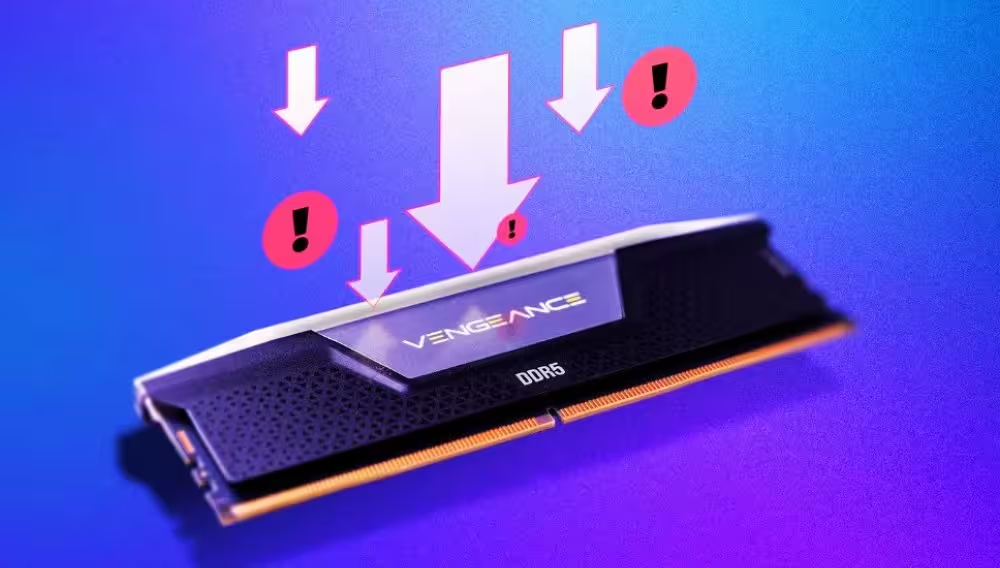
Here is the part many tutorials skip. RAM, or Random Access Memory, is a physical hardware component soldered or slotted into your computer. No software can magically add more chips to your motherboard. What optimization software can do is manage how that existing memory is allocated.
When you run Windows, dozens of background services quietly claim memory even when you are not using them. Browser tabs cache data. Old applications leave residual processes running. Over time, your “free” RAM shrinks, and your active programs start fighting for scraps. A good optimizer flushes these inefficiencies so your real workload has room to breathe.
What DownloadMoreRamPro Does Under the Hood
The tool typically performs several functions in sequence. It clears standby memory that Windows reserves but rarely uses. It identifies orphaned processes left behind by closed applications. It also helps manage startup programs, so your machine boots faster and reaches a usable state sooner. None of this replaces a true hardware upgrade, but for users who cannot or do not want to crack open their laptop, it is a meaningful boost.
Who Should Use DownloadMoreRamPro
This kind of utility is not for everyone. If you already have 32GB of RAM and a top-tier CPU, you probably do not need it. But there are clear use cases where it shines.
Older Laptops and Budget Desktops
If you are running a five-year-old laptop with 4GB or 8GB of RAM, every megabyte counts. Memory optimization can be the difference between a usable machine and one that gets shoved in a drawer.
Casual Users With Heavy Browser Habits
Modern web browsers are memory monsters. Anyone who keeps fifteen tabs open while running Spotify, Discord, and a Word document will feel the squeeze. Optimization tools help reclaim memory that browsers refuse to release on their own.
Gamers on Modest Hardware
Games are increasingly demanding, and a few hundred extra megabytes of free RAM can mean the difference between smooth gameplay and stuttering frames. Closing background processes before launching a game has always been good practice, and tools like DownloadMoreRamPro automate that workflow.
Pros and Cons of Using It
No tool is perfect, and being honest about limitations matters more than hype.
The strengths are real. The interface is clean. The free version covers most use cases for casual users. There are no shady browser extensions bundled with the installer, which is sadly rare in the PC optimizer space. Updates appear to roll out regularly, which suggests an active development team.
The drawbacks are worth noting. It is Windows-only, so Mac and Linux users are out of luck. It cannot perform miracles on hardware that is genuinely past its useful life. And while the free tier is generous, some power-user features sit behind a paid plan.
How It Compares to Alternatives
The PC optimization space is crowded with options, ranging from legitimate tools to outright malware. Compared to general cleaners like CCleaner, DownloadMoreRamPro is more narrowly focused on memory and performance rather than registry tweaks or junk file removal. Compared to flashier “PC Turbo” tools that promise miracles, it stays grounded in what is actually possible.
For users who want a single-purpose utility that does memory management well, this is a reasonable pick. For users who want an all-in-one suite, a broader tool might serve better.
Tips to Boost PC Performance Beyond Software
Software optimization is one piece of the puzzle. If you really want to keep your computer running smoothly, combine it with a few habits.
Restart your machine at least once a day. This single action clears memory leaks and flushes caches. Disable startup programs you do not actually need. Most software installers sneak themselves into your startup queue, and pruning that list speeds up boot times dramatically. Keep Windows updated, since memory management improves with newer builds. And if your machine is genuinely underpowered, consider adding a physical RAM stick. The price has dropped substantially in recent years, and a hardware upgrade often delivers more than any software ever can.
Is DownloadMoreRamPro Safe to Use?
Safety is a fair concern with any free utility. Based on user reviews and security checks, DownloadMoreRamPro does not appear to bundle malware or aggressive adware. It does not force homepage changes or install unwanted toolbars. As always, download it from the official source, run a quick virus scan on the installer, and read the prompts during installation rather than clicking through blindly.
Final Thoughts
DownloadMoreRamPro will not literally download more RAM, and anyone promising otherwise is either joking or lying. What it can do is help your existing memory work harder, which for most users is the practical fix they actually need. It is simple, focused, and does not try to do everything at once. For Windows users with sluggish systems, it earns a spot in the toolbox alongside good habits and the occasional hardware upgrade.
If your laptop is wheezing through basic tasks, give it a try. The worst case is you uninstall it. The best case is your machine feels alive again.
Frequently Asked Questions
Can you really download more RAM?
No. RAM is a physical hardware component that must be installed inside your computer. Tools like DownloadMoreRamPro optimize how existing memory is used rather than adding new memory.
Is DownloadMoreRamPro free?
There is a free version that covers core features and a paid premium tier with more advanced options. Most casual users will find the free version sufficient.
Does it work on Mac or Linux?
No. The tool is currently Windows-only. Mac and Linux users will need to look at platform-specific alternatives.
Will it speed up gaming performance?
It can help by freeing memory and closing background processes before you launch a game. Results depend on your hardware, but most users notice smoother gameplay on memory-limited systems.
Is it safe to install?
Based on available reviews, the installer does not include malware, browser hijackers, or forced extensions. Always download from the official site and scan the installer to be safe.
How often should I run optimization?
For most users, running it once or twice a week is enough. Heavy users with demanding workloads might benefit from running it daily before launching memory-heavy applications.
Does it replace a hardware RAM upgrade?
No. If your computer is genuinely underpowered, adding physical RAM will always deliver better long-term results. Optimization tools help you make the most of what you already have.
Read Also : feestech-com: What It Is an How It Helps ?